How to add Sharepoint File Shares to OneDrive / access them in Teams
As you may be aware, we are moving some of our file servers to Sharepoint, which will allow for advanced functionality and access that simply isn't possible with standard Windows file shares. However, this does come with a bit of a learning curve, and this document has been created to help with that.
If you find anything wrong, or if you feel there should be anything else added to this Knowledge Base article, please feel free to write to helpme@trustedtalent.com and we can update this document accordingly.
How to access Sharepoint file shares in Windows
Generally, all Sharepoint file storage is accessed from the Sharepoint Site itself. The site address will be formatted similarly to this:
and will look like this in a web browser:
To access the documents, you'll simply go down to the Documents tab.
and to access it in Windows Explorer, you'd simply click the "Add shortcut to OneDrive" button on the top.

From there, if you access your OneDrive folder in Windows Explorer (or Finder on a Mac), it should now have that folder name:
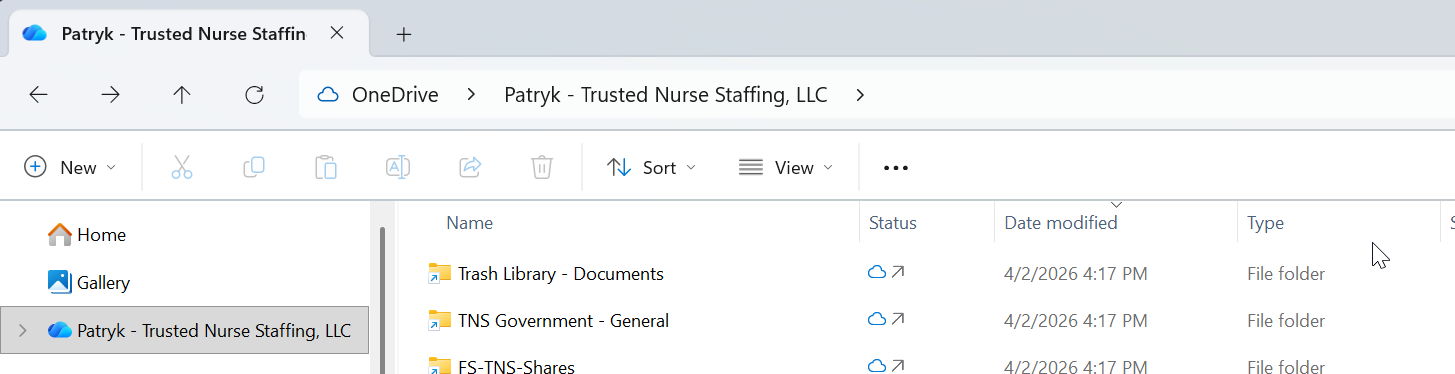
You can right-click and rename the shortcut - for consistency's sake, use the same name that your manager or leadership as designated for that particular Sharepoint site.
How to access this folder in Teams
All Sharepoint access is controlled by permissions granted by being a part of different teams (not to be confused with MS Teams, the app we all use for communication). As such, when you're added to the team, it'll show up on the bottom of MS Teams under "Teams and Channnels". You'd scroll down to that section and choose the Team you want to access:
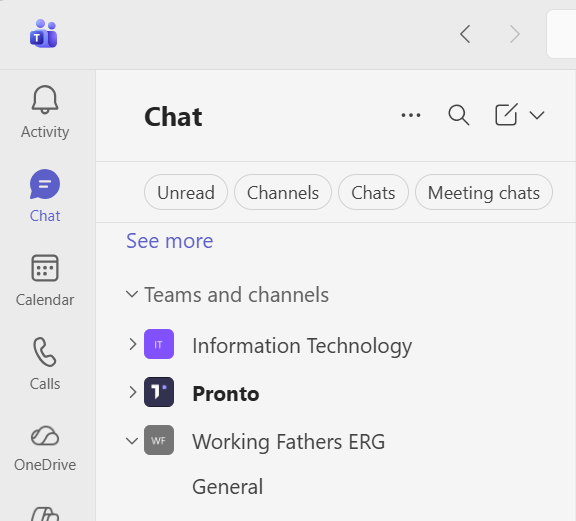
Once that Team opens, there will be a General section, and in that general section, there will be a Shared spot on the top menu bar. You can also add the shortcut to OneDrive from here as well (if you don't see it, click on the three dots to expand the menu, and one of the options will be "Add shortcut to OneDrive"). But you can always simply access the files directly from MS Teams by following the process above.
Related Articles
Delegated Access via the Web Portal
Delegated Access This knowledge base article shows how to use delegated access via the web portal. If you're using Outlook, it should add the mailbox(es) directly to Outlook, but this is an easier method for focusing directly on the end user inbox. ...Sending an encrypted email through Office Web Access
Creation Date: June 6, 2024 1. To start, go to portal.office.com... 2. and log in, using your email address... 3. and password. It should be the same as what you use for your computer. 4. You can click the checkbox to stay signed in (or not) 5. but ...How to check if you're backing up your desktop and documents to OneDrive
1. Click on the OneDrive app on your computer's system tray: (and if you don't have OneDrive, go to https://helpme.trustednursestaffing.com/portal/en/kb/articles/setting-up-onedrive-for-business and follow those directions instead :-D) 2. Click the ...How to Install ScreenConnect on a Mac (used when the N-Able agent isn't working right)
Generally, all Trusted machines have a special monitoring agent (from N-Able) that allows the tech team to quickly and easily remote in to assist with any problems the end user might be facing. Unfortunately, that agent can sometimes fail, and our ...VPN Issues? Check here first!
There are a few things to check when you're having VPN issues. Read the error message carefully. It has information that will help you determine what the problem is. If this is your problem, try the following steps to try to fix your issue. Are you ...